Headless WooCommerce: How to Use Framer as Your Storefront
Learn how headless WooCommerce works and how to use Framer as your storefront. Sync products, add a checkout, and launch a no-code store in minutes.

TL;DR
- Headless WooCommerce keeps WordPress as your backend for products, orders, and inventory while the storefront lives somewhere else.
- Framer works well as that storefront because it gives you full design control, static page speed, and a built-in CMS.
- You can connect the two without code: install a free bridge plugin in WordPress, approve a short code, and drop product and cart components into Framer.
- Payments run through your WooCommerce gateways (Stripe, Paystack or Cash on Delivery), so your Framer site never handles card data.
- Headless is good for SEO when the front end serves real HTML, which Framer does.
- Sync your catalog to Framer CMS for slower-moving inventory, or pull it live from the API for large and fast-changing catalogs.
Your WooCommerce store is fine. Your storefront probably isn't.
Most people who run a WooCommerce store did not choose it because they loved the design experience. They chose it because it is free, flexible, and owns its own data. WooCommerce still holds around 18% of the top one million ecommerce sites, which tells you how much trust it has earned as a backend.
The trouble starts at the front. You pick a theme, then a page builder, then three plugins to make the page builder behave, and six months later your product page takes four seconds to load and looks like every other store in your niche.
Headless WooCommerce solves this by splitting the two jobs apart. WordPress keeps doing what it is good at, which is managing products, orders, stock, and customers. A separate front end handles design, speed, and the shopping experience.
What is headless WooCommerce?
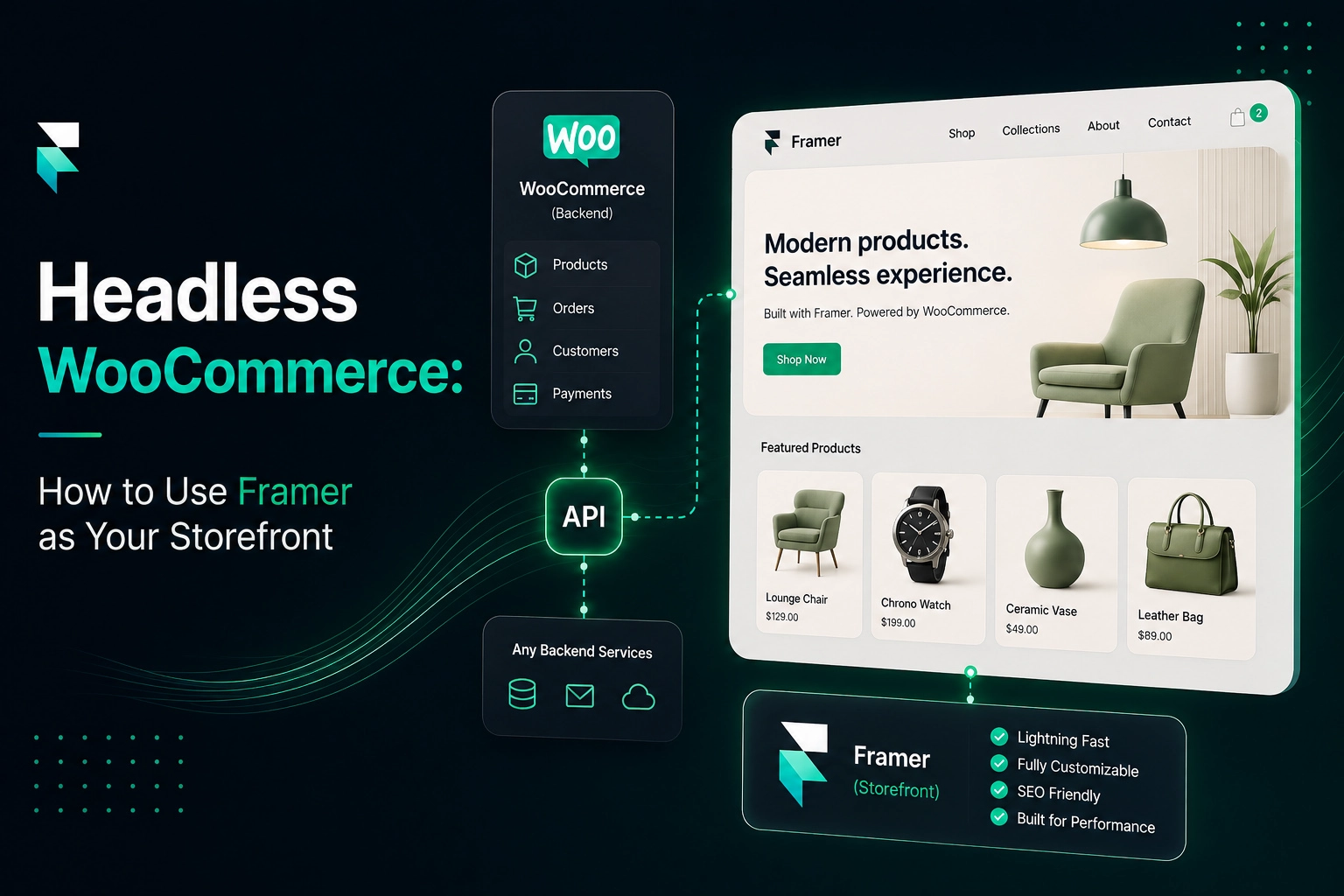
Headless WooCommerce is an architecture where your store runs as a backend only, and a separate application renders the storefront customers see. The two talk over the WooCommerce REST API.
In a traditional setup, WordPress does everything. It stores the product, decides how the product page looks, and serves the HTML. In a headless setup, those responsibilities split:
- Backend (WordPress + WooCommerce): products, variants, pricing, inventory, orders, tax, shipping.
- API layer: the WooCommerce REST API, which exposes that data as JSON to anything you authorize.
- Frontend (Framer): design, navigation, product listings, cart, checkout, and content pages.
Nothing about your WooCommerce admin changes. You still add a product the same way. It just gets displayed somewhere new.
This is not a fringe approach anymore. A Censuswide survey commissioned by WP Engine found that roughly 73% of businesses now use some form of headless website architecture. What changed recently is that the tooling finally reached people who are not engineers.
Why headless WordPress ecommerce appeals to smaller stores
Enterprise brands went headless for omnichannel reasons. Smaller stores go headless for three simpler ones:
- Design freedom. No theme limits, no CSS overrides, no wrestling with a builder.
- Speed. Static pages from a CDN beat a PHP page that queries a database on every visit.
- Separated risk. A plugin conflict on WordPress does not take your storefront design down with it.
Can Framer be used as a WooCommerce storefront?
Yes, and it has become one of the more sensible Framer ecommerce paths for design-led teams.
Framer started as a design tool and grew into a full site builder with hosting, a CMS, and real component logic. That combination is what a headless frontend needs:
- A CMS that can hold synced product data, so every product gets its own indexable page.
- Static-first rendering, so crawlers and shoppers both get real HTML.
- Visual control down to the pixel, without touching code.
- Built-in hosting and CDN, so you are not managing deployments.
What Framer does not do natively is talk to WooCommerce. That gap is what FeCommerce fills. It connects to your store through the free FeCommerce Bridge plugin and gives you drag-and-drop product listings, product pages, variant selectors, a cart, and on-page checkout.
How to build a headless WordPress WooCommerce store in Framer
Here is the practical sequence. Most people get a working store up in an afternoon.
Step 1: Install the FeCommerce Bridge in WordPress
Download the free FeCommerce Bridge for WooCommerce plugin. In WordPress, go to Plugins, then Add New Plugin, then Upload Plugin, choose the ZIP and activate it. Your store needs to be on a public https address. There are no WooCommerce API keys to create.
Step 2: Connect the plugin in Framer
Open your Framer project and install FeCommerce from the Marketplace. Click Connect store and you'll get a short code. In WordPress, go to WooCommerce → FeCommerce, enter the code and click Approve, then confirm your store in Framer. The whole thing takes about a minute.
Step 3: Choose your data source
You will be asked whether to sync products into Framer CMS or pull them live from the API. More on that decision below, because it matters more than it sounds.
Step 4: Drop in the components
Place the product listing on your shop page, the product detail component on your CMS template page, and the cart wherever it belongs in your layout. Then style them like any other Framer layer: fonts, spacing, hover states, breakpoints, all of it.
Step 5: Wire up checkout
The on-page checkout uses the payment gateways you already have in WooCommerce: Cash on Delivery, plus Stripe and Paystack if you enable them. Run a test transaction before you launch. Setup guides and component references live in the FeCommerce docs.
Shortcut: start from a template
If you would rather skip the layout work, Fe Luxe is a free Framer ecommerce template built for gear, apparel, and everyday-carry brands. It ships with CMS-powered product pages, a working cart and wishlist, quick view, category filtering, and an editorial journal already wired up.
Duplicate it, rebrand it from the assets panel, then point the product CMS at your WooCommerce catalog. That turns a headless build into a rebranding exercise rather than a from-scratch project.
Should you sync products to Framer CMS or use the live API?
This is the most consequential decision in the whole build, and the right answer depends on your catalog.
Sync to Framer CMS when:
- Your catalog is under a few hundred products.
- Prices and descriptions change occasionally, not hourly.
- SEO matters, because each CMS item becomes a static page with its own URL and metadata.
- You want the fastest possible page loads.
Pull from the live API when:
- You have a large catalog that would be awkward to mirror.
- Stock levels and pricing change constantly.
- Real-time accuracy matters more than static page speed.
A hybrid works well for most stores. Sync your core catalog into the CMS for indexable product pages, then use live API calls for stock status and current price on the product page itself. You get static SEO benefits with accurate data where it counts.
If you are still weighing whether Framer is the right platform at all, this guide to building an online store with Framer covers the fundamentals before you commit.
How do payments work in a headless setup?
This is the question that makes people nervous, and the answer is reassuring. Payments do not get more complicated when you go headless. They usually get simpler.
Your Framer storefront never processes card data. It hands the transaction to a payment provider that is already PCI compliant, and the customer completes payment through that provider's secure flow. Money lands in your account directly.
With FeCommerce, payment goes through the gateways in your WooCommerce store. Shoppers pay on your Framer site with Cash on Delivery, or by card through Stripe or Paystack when you enable them, and every order lands in WooCommerce as usual.
Selling without WooCommerce, or want a hosted checkout instead? For card payments, wallets, and international checkout, StripeKit connects your Stripe account and turns any product into a buy button with checkout wired in.
Selling in India is a different problem, and it needs UPI alongside cards. RazorpayKit handles one-tap checkout across multiple currencies with live payment link sync.
Because the storefront is decoupled, you can swap or add a processor later without rebuilding the site. That flexibility is one of the underrated arguments for headless in general.
Is headless WooCommerce good for SEO?
Headless is neutral for SEO on its own. Execution decides the outcome.
The old fear was that JavaScript-heavy frontends would render an empty page for crawlers. Google has since documented how it processes JavaScript, and static-first platforms like Framer largely sidestep the problem by serving pre-rendered HTML.
Where a headless WordPress ecommerce build genuinely wins:
- Core Web Vitals. Static pages on a CDN outperform a plugin-heavy WordPress theme.
- Clean URL architecture. You design the structure instead of inheriting it from a theme.
- No plugin bloat. Fewer scripts, less render-blocking, lighter pages.
Where builds go wrong:
- Forgetting to map old WooCommerce URLs to new Framer URLs with 301 redirects.
- Leaving product schema off, so rich results never appear.
- Letting the old WordPress storefront stay indexed alongside the new one.
- Writing metadata for the homepage and nothing else.
The fix is process rather than technology. Run an audit before and after launch. The free SEO Toolkit scores every Framer page on the canvas, flags weak metadata, and generates schema.
Best practices worth following
- Test checkout end to end: test mode, then one real transaction, then a refund.
- Keep WooCommerce as the single source of truth. Never edit product data in two places.
- Only approve connection codes you started yourself, and disconnect sites you no longer use from WooCommerce → FeCommerce.
- Set up a redirect map early if you are migrating an existing store.
- Design mobile first, since most storefront traffic is mobile.
- Keep the WordPress admin secure and updated even though customers never see it.
Framer stores your metadata but never tells you whether it is any good. This breakdown of how a free Framer SEO plugin scores every page walks through what gets audited and what to fix first.
Conclusion
Headless WooCommerce is not a trend-chasing exercise. It is a practical answer to a real problem, which is that WooCommerce is an excellent backend attached to a frontend most designers find frustrating. Splitting the two lets each half do the job it is good at.
Framer makes that split accessible to people who do not write code. You keep your products, orders, and inventory exactly where they are, and you build the storefront on a canvas where you control every detail. Pair it with the SEO Toolkit plugin and your product pages ship with clean metadata from day one.
If you have been putting off a storefront redesign because the rebuild felt too big, this is a much shorter path than it used to be. Every plugin in the suite is free, so you can connect your WooCommerce store to Framer and watch products syncing before you commit to anything.
FAQs
1) What is headless WooCommerce?
Headless WooCommerce is a setup where WordPress and WooCommerce run as a backend only, handling products, inventory, orders, and customers, while a separate frontend renders the storefront. The two connect through the WooCommerce REST API. Your admin workflow stays the same, but the design layer becomes fully independent.
2) Can Framer be used as a WooCommerce storefront?
Yes. Framer can act as the frontend for a headless WooCommerce store. A plugin connects to your store through a small WordPress bridge, syncs products into Framer CMS or pulls them live, and provides ready-made product listing, product page, variant selector, cart, and checkout components you can style like any other layer.
3) Is headless WooCommerce good for SEO?
It can be very good, provided the frontend serves real HTML rather than a client-side shell. Framer's static-first rendering handles that, and static pages on a CDN usually improve Core Web Vitals compared with a plugin-heavy WordPress theme. The real risks are procedural: missing redirects, absent product schema, and duplicate indexed storefronts.
4) Do I need to code to build a headless WordPress ecommerce site?
Not anymore. Traditional headless builds required a developer to set up a framework, manage API calls, and handle deployment. With Framer and a WooCommerce sync plugin, the connection is a matter of approving a short code and dragging components onto the canvas. No framework, no build pipeline, no hosting setup.
5) How do payments work in a headless setup?
Payment processing stays with your provider. Your Framer storefront passes the transaction to the gateways in your WooCommerce store, such as Stripe or Paystack, which handle secure checkout and card data. The site never stores payment details, and funds go directly to your connected account. Because the frontend is decoupled, you can change processors later without rebuilding the store.
6) Should I sync products to Framer CMS or use the live API?
Sync to Framer CMS if your catalog is modest and changes slowly, because each product becomes a static, indexable page that loads fast. Use the live API if your catalog is large or your stock and pricing change frequently. Many stores run a hybrid, syncing the catalog for SEO while pulling live data for stock and price.